
Going along with our training session, now we’ll be going over some key shortcodes and link handling tips including but not limited to:
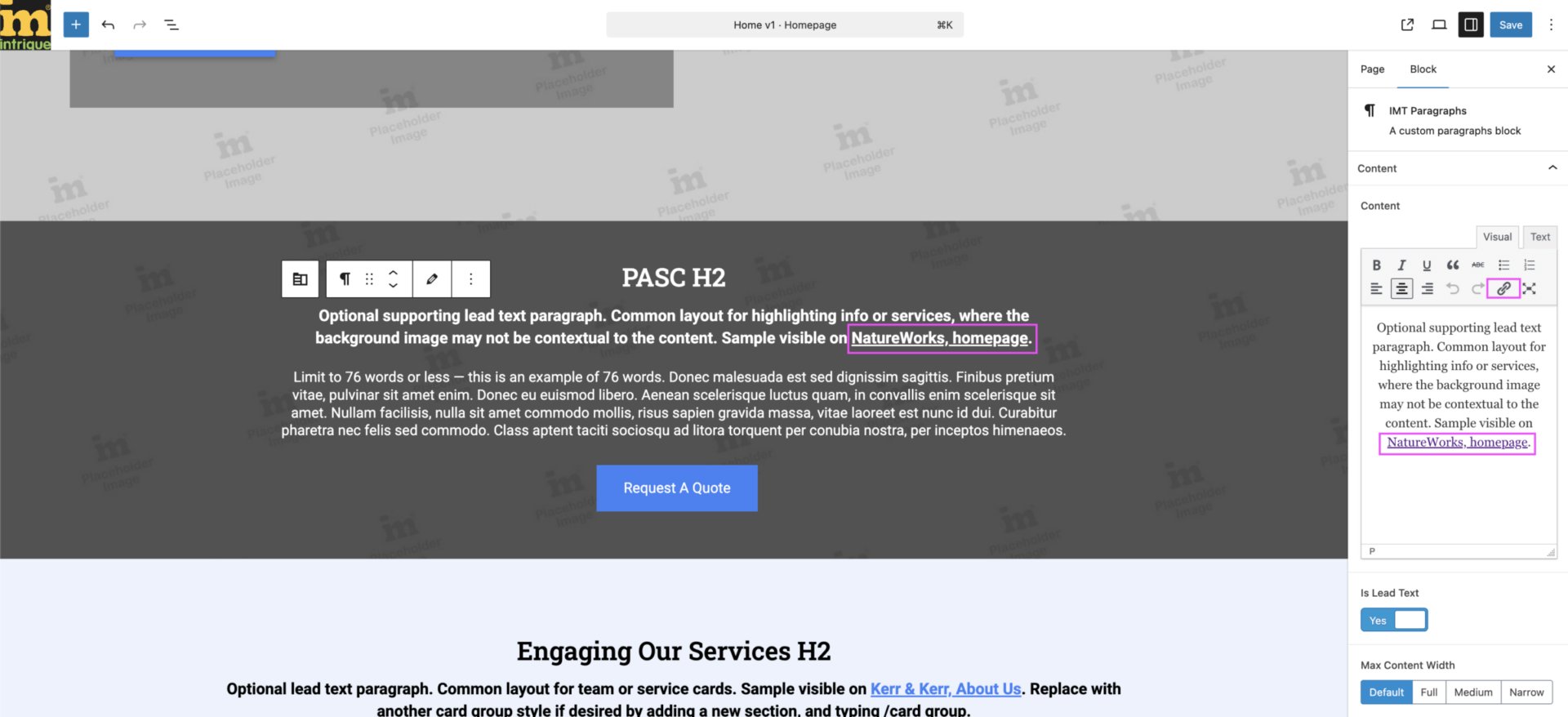
Hyperlinks are links of text, added commonly in paragraph elements, but can also be added to images where relevant. These are most frequently added by selecting a portion of text, and clicking the link icon in the WYSIWYG editor.
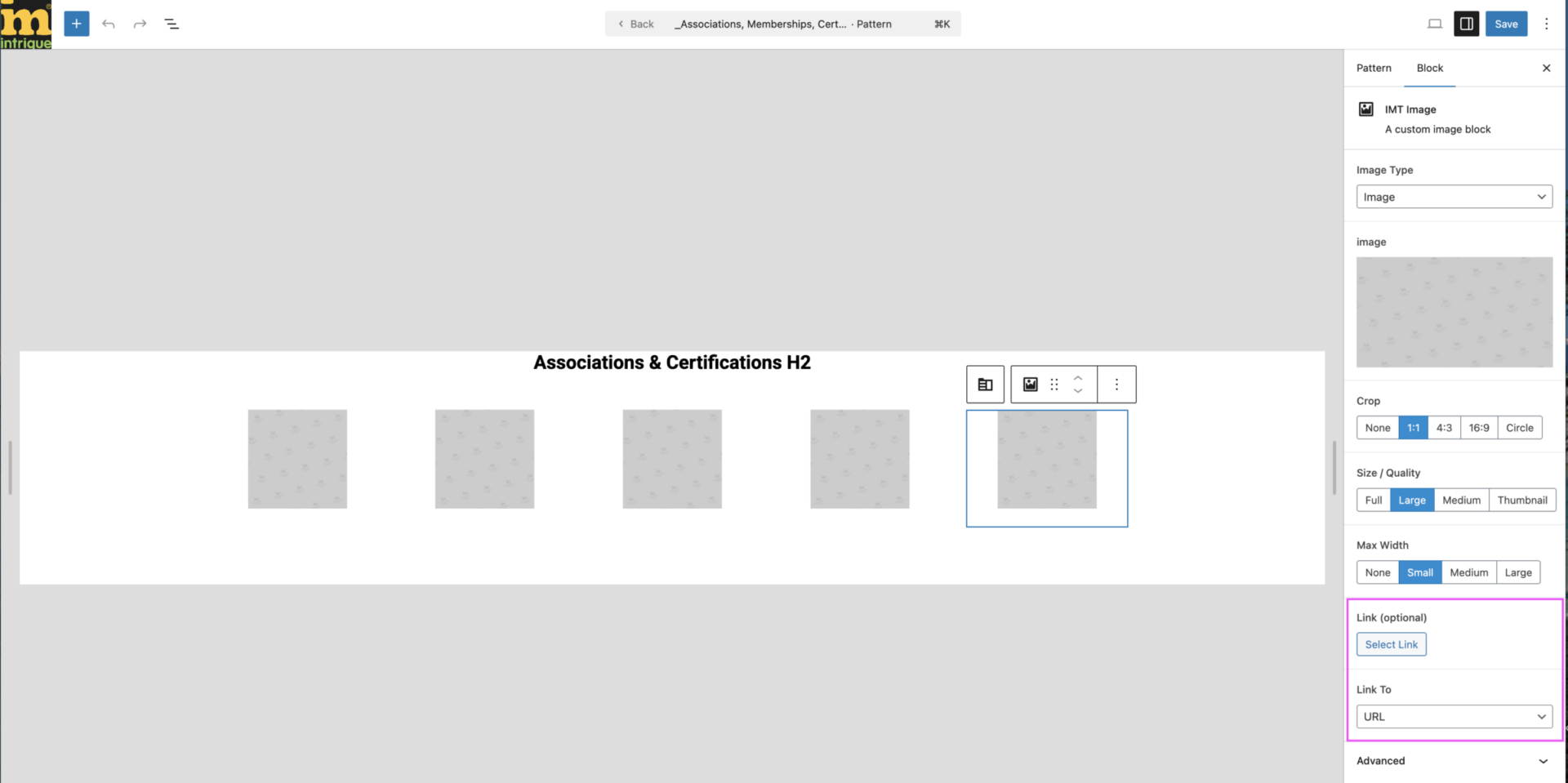
Adding a link for an image is also incredibly easy and mirrors the same way you would add a link anywhere else. This can be useful if we or the client desire to link to an association’s website, or otherwise build more of a back and forth relationship of information or context.
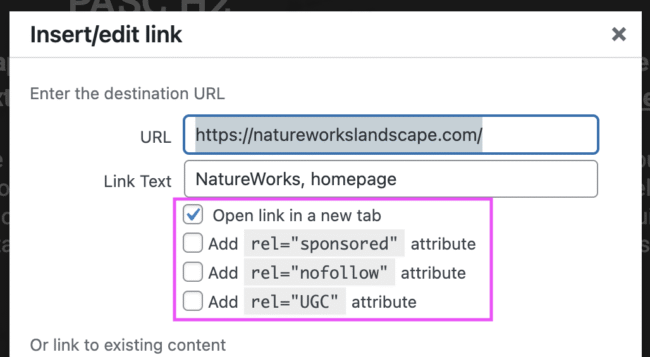
The only settings of these which we typically use is ‘Open link in a new tab’, used when we are including an external link.
The other options are defaults added by WordPress, and we do not currently use these as a part of our build process.
Anchor links are a type of hyperlink within this context, as they’re added very similarly to other URLs.
First, you need to make sure the section you plan to link to has an HTML Anchor set – this should be unique, as no 2 anchors can be the same, and be kept brief and to the point. Use dashes instead of spaces when needed.
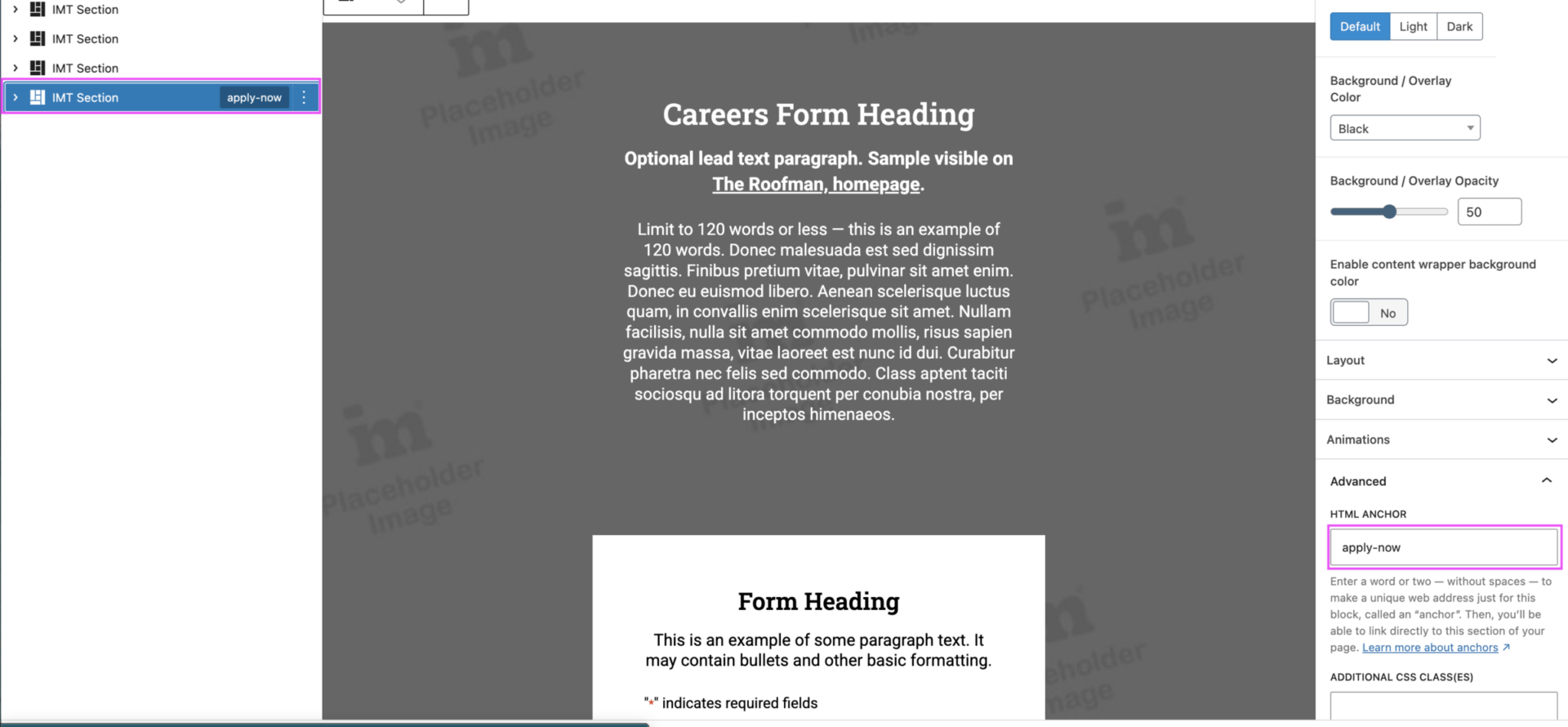
Then, in the button or text link, add the #, then the text you added for the section HTML Anchor section.
If you need to link to an anchor on another page, make sure you add the part of the slug that would take someone to that page – e.g. /careers/#apply-now to ensure that the user does not accidentally get directed to a non-existent section on their current page.
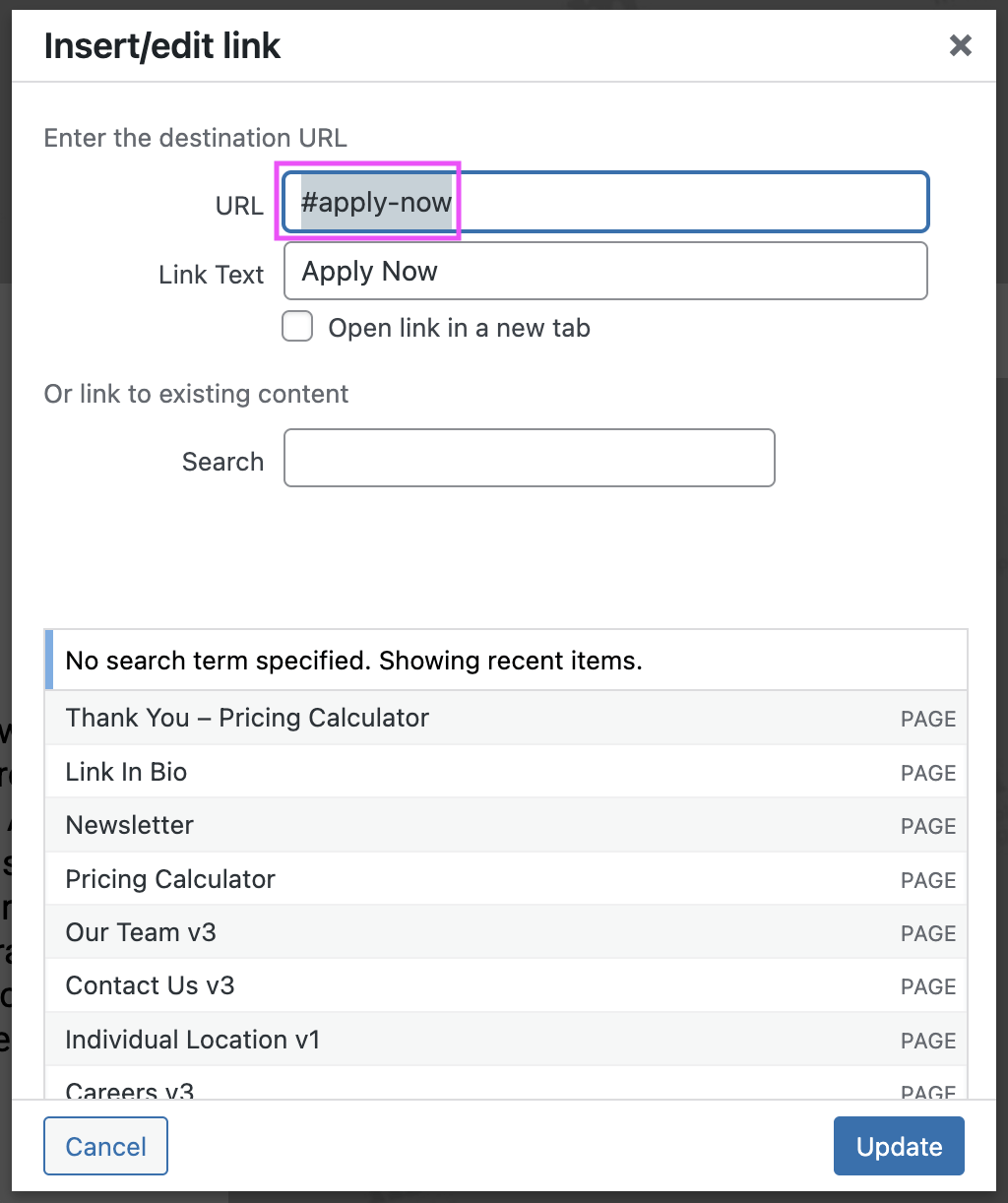
When using an anchor as a link, you need to add #apply-now
When creating the anchor under Advanced > HTML Anchor, you do not need the # symbol, apply-now
If the anchor lives on another page than the current page, make sure you include any relevant part of the slug, /careers/#apply-now
Shortcodes are lovely little helpers crafted by our dev team that help OTT and design implement repetitive but important information across a client’s website.
You can recognize a shortcode in use by text surrounded by square brackets [], typically beginning with ‘imt_’.
There are 2 main ways to use these shortcodes, either within an IMT shortcode block (accessible by inserting a new section and selecting the ‘IMT Shortcode’ block) or within most, if not all, text elements across the website.
Always try to copy from somewhere else before trying to add it in from scratch to save yourself some time.
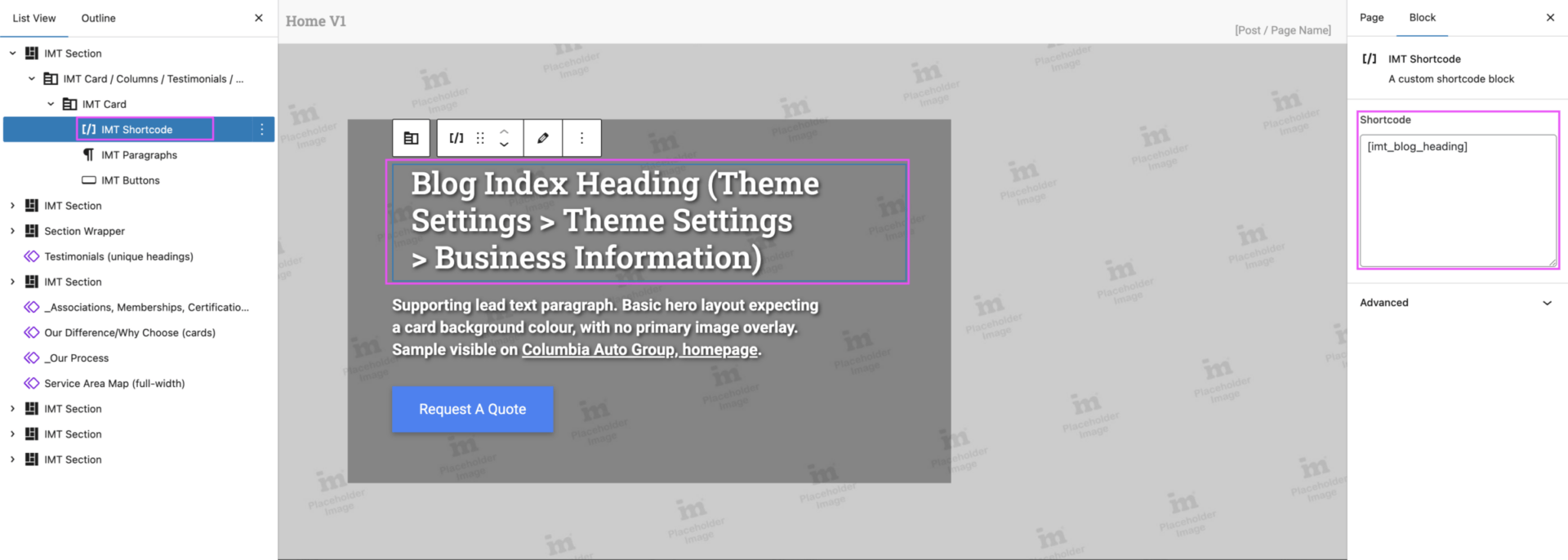
This version is less frequently used, but is integral for particular shortcodes like the Blog Heading one, where the shortcode itself is an H1. Adding an IMT Heading block, setting it to H1, and then adding the shortcode results in a duplication of H1 tags (a big no). Instead, you add the shortcode block, add in the related shortcode, save the page, and you’ll see the proper formatting on the live site.
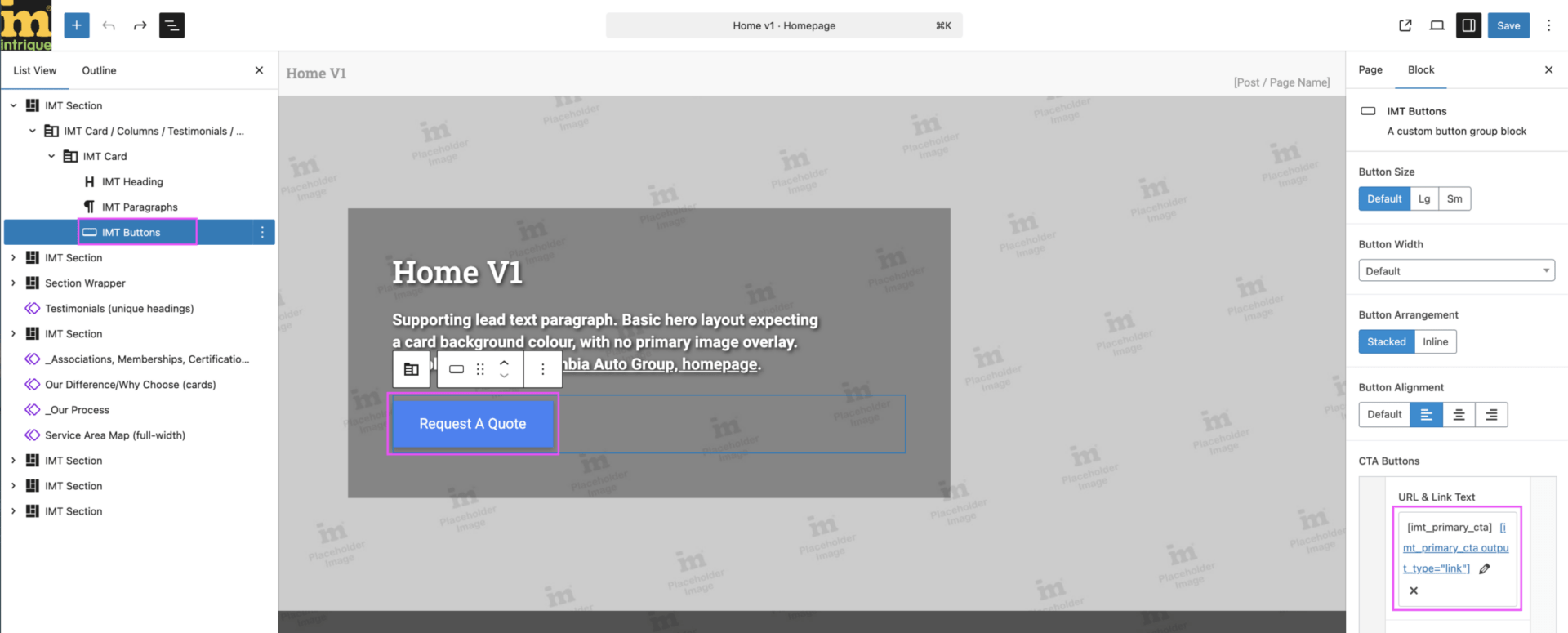
Shortcodes in buttons, specifically [ imt_primary_cta ], is incredibly useful and powerful across our websites. We use this particular shortcode in most buttons, in the main navigation, and can even make use of them in other key, conversion-centric locations, such as within text, then hyperlinked, in blog posts as a way to maintain consistent language for a client’s call to action.
One of the important features is to make sure you have the URL set up correctly – it can accept the shortcode, but you need to make sure to remove unexpected characters and the http:// from the URL field, otherwise we’ll end up sending users to the 404 page or an otherwise broken link.
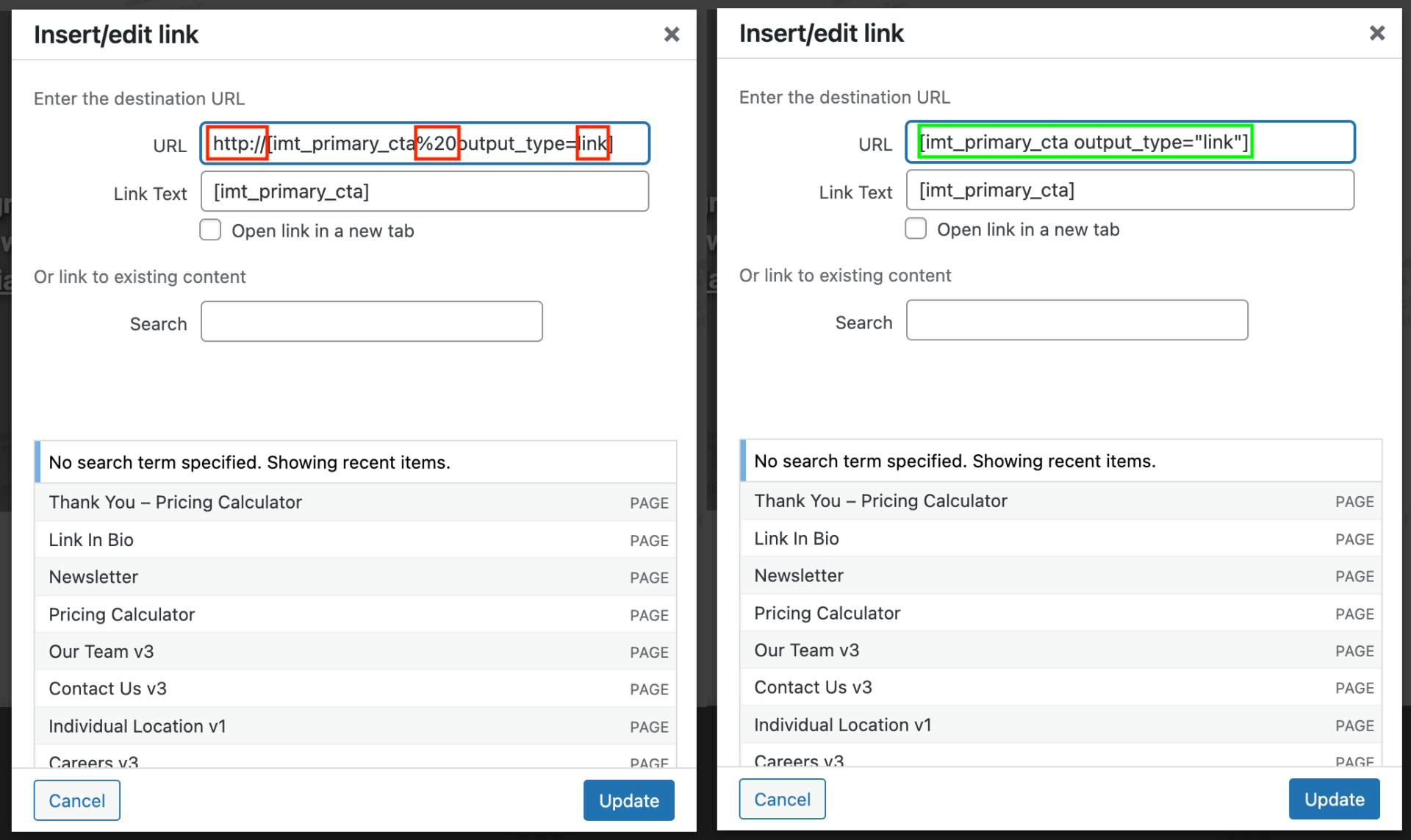
Two steps you can implemenent to check for this:
WordPress tries to be intelligent and append http:// to every text item pasted inside the URL field – even if you are intentionally pasting a shortcode. Always remember to tab or click into the link text field, and erase any http:// that appears until it stops.
Always save and check the link! Clicking out or pressing enter will not save the updates you made, and it will not flag typos.
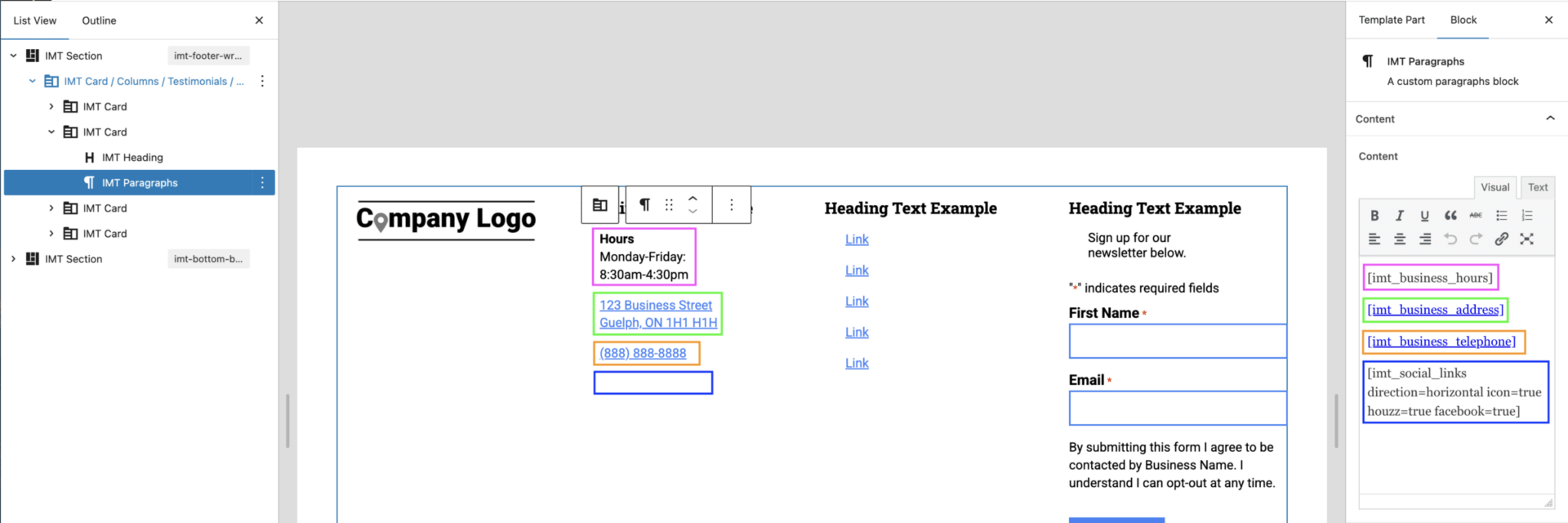
Shortcodes make up a huge part of our footers – especially the client’s business information. Similar to implementing for buttons, a lot of the client’s business information items have an associated URL to them, and can be added as links the same way you would add them to a button and require the same attention to detail to make sure they aren’t getting saved broken.
These are typically set up by design at the start of a build, but periodically need updates throughout a client’s life cycle with Intrigue. One common shortcode that may need updates is [ imt_social_icons ], where perhaps we remove, exchange, or add an additional social profile.
WordPress tries to be intelligent and append http:// to every text item pasted inside the URL field – even if you are intentionally pasting a shortcode. Always remember to tab or click into the link text field, and erase any http:// that appears until it stops.
Always save the link! Clicking out or pressing enter will not save the updates you made.
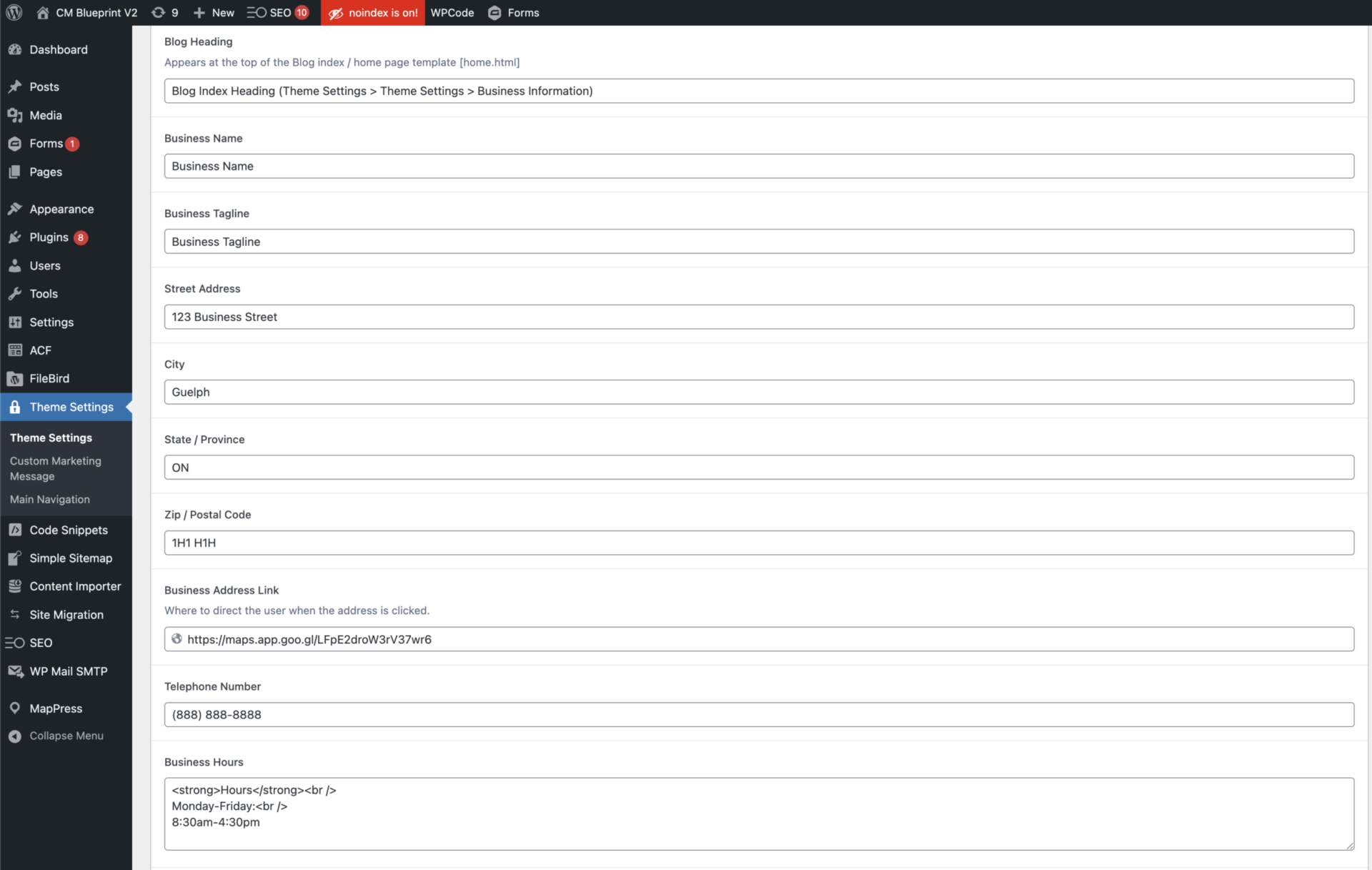
The majority of information related to shortcodes is handled through Theme Settings > Theme Settings, and the assorted sections on this page, like Business Information.
For formatting, you typically want to reference how it was implemented before your change, and replicate that, or check a source you know had it formatted the way you want, and then follow that implementation.
Shortcode information will only update if the shortcode is looking for the right information. If we update the business address, but the address was manually added somewhere, it will not update to match.
The same is true of buttons, the business name, phone numbers, and more.
Shortcodes make up a huge part of our footers – especially the client’s business information. Similar to implementing for buttons, a lot of the client’s business information items have an associated URL to them, and can be added as links the same way you would add them to a button and require the same attention to detail to make sure they aren’t getting saved broken.
These are typically set up by design at the start of a build, but periodically need updates throughout a client’s life cycle with Intrigue.
You can always check out the shortcodes in the knowledge base, here.
Used to set the primary call to action for the website, such as Book A Consultation or Request A Quote.
output_type="link" can be added to format the shortcode as a URL to assign in combination with the main shortcode used as text. It will not act as a URL without this.
This can be used in the same way as imt_primary_cta to apply the client’s business telephone.
Ensure you do not manually add +1, as this will automagically add it when used as output_type=”link”, and the extra inclusion will result in duplication.
The business address has 2 components, set up at a different time, so the link and address text are 2 different shortcodes.
A component of this is the regular shortcode imt_business_address takes in multiple fields of data and automagically formats it as a proper address.
Allows us to control which social profiles are shown or hidden, frequently used in the footer.
Setting values like facebook=true, instagram=true, etc. allows us to show them, regardless of if we had previously included a URL for a profile that the client requested we no longer show.
A profile should only be set to true of it has a URL assigned in the Theme Settings.
If a profile does not exist, flag for design or development as overrides may be required in order to make a new profile type visible.
As previously mentioned, this takes text set in the Theme Settings and outputs an H1, intended to be used as the H1 on the blog page.
When we have Mariani clients, the footer needs to say Mariani Enterprises, LLC., but all of the other client business name instances do not need to be. In the bottom bar section where the copyright text exists, you can replace the shortcode [] content of imt_copyright with:
imt_copyright business_name=”Mariani Enterprises, LLC.”
To make this change, no developer support required!
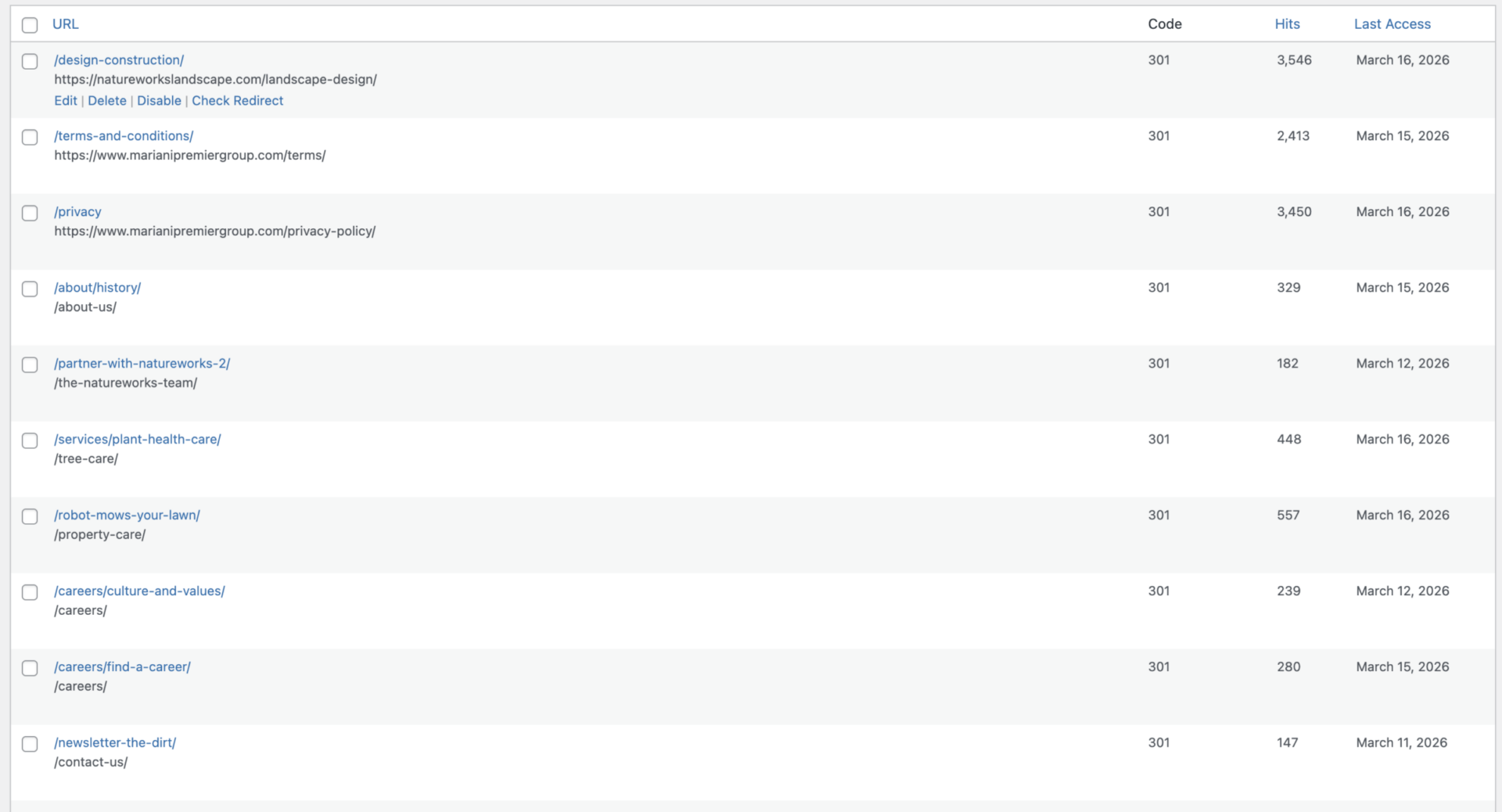
Redirect links should be used sparingly, but are incredibly meaningful to ensuring that users who may be trying to visit a site’s previous URL are redirected to the new URL without visiting a 404 page.
They can be accessed via Tools > Redirection.
There are 3 other use cases where these may come up, but are intended as a last resort when we cannot implement another solution:
There is no current formal process to including redirects in cases 2 and 3, and should be discussed for their specific use cases as to whether we have another option, to ensure the user experiences align with what the website communicates to them.
Redirects should be used sparingly, but can be very powerful. Always check in with OTT and confirm before changing any links, as this may have unintended side effects.